Overview
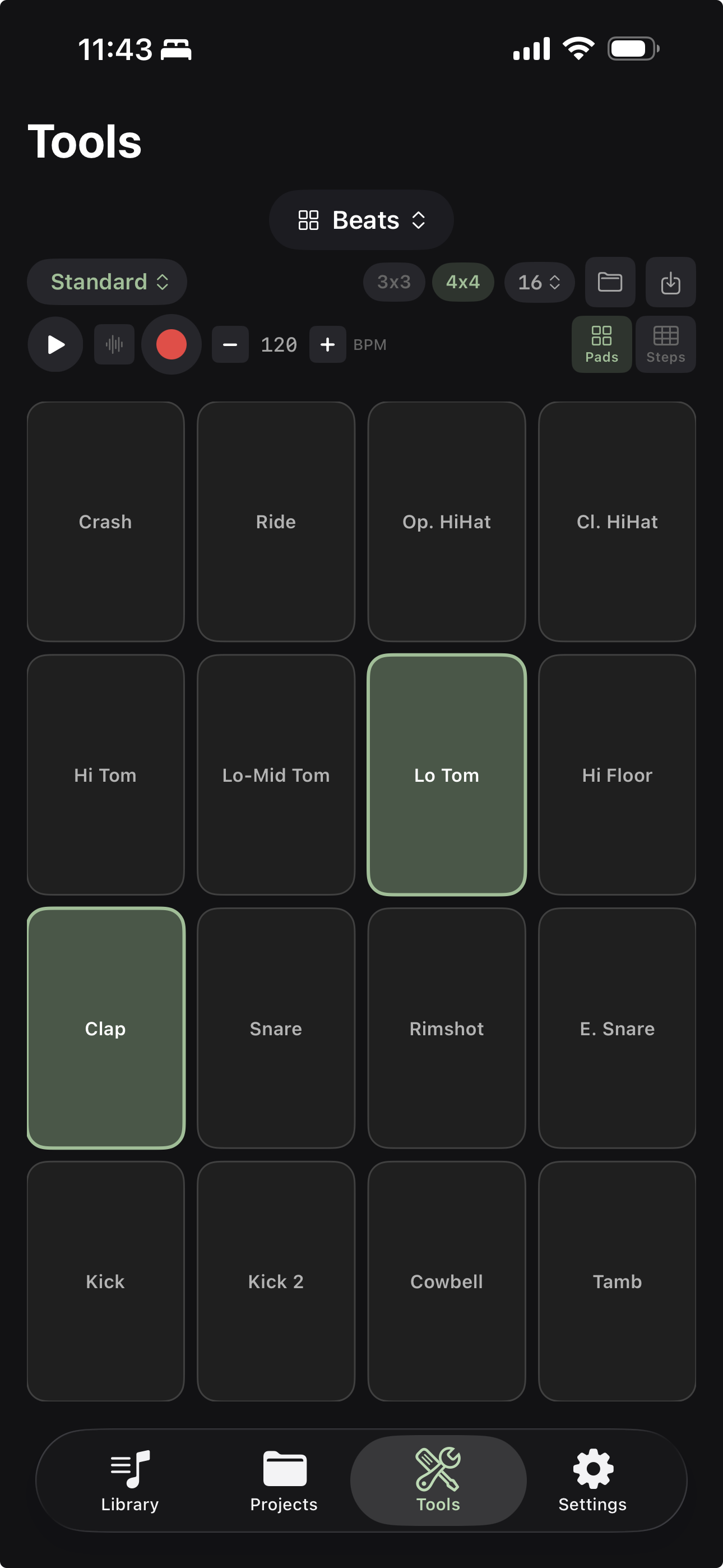
Good Take includes a full drum machine — tap out beats on pads or program them step by step in the sequencer. Record patterns straight into your library as ideas, or just jam along while you work out parts.
Pads
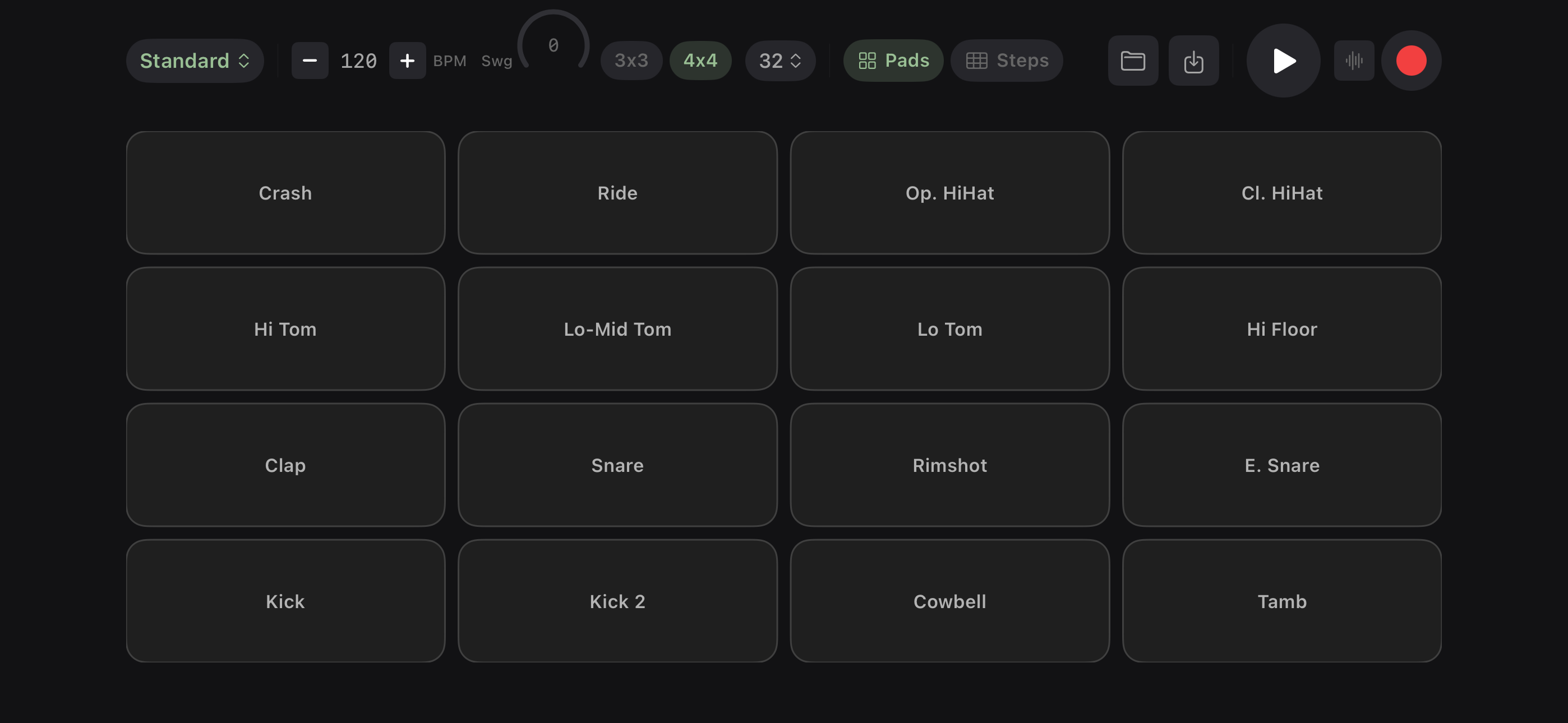
Tap to trigger drum sounds in real time. The pad grid supports multi-touch so you can play multiple sounds at once.
- 16 pads in 4x4 layout, or switch to 3x3 for larger pads
- Velocity-sensitive — hit harder for louder sounds
- Remap any pad — long-press to browse all GM percussion sounds and assign a new one
- Haptic feedback on every tap
Step Sequencer
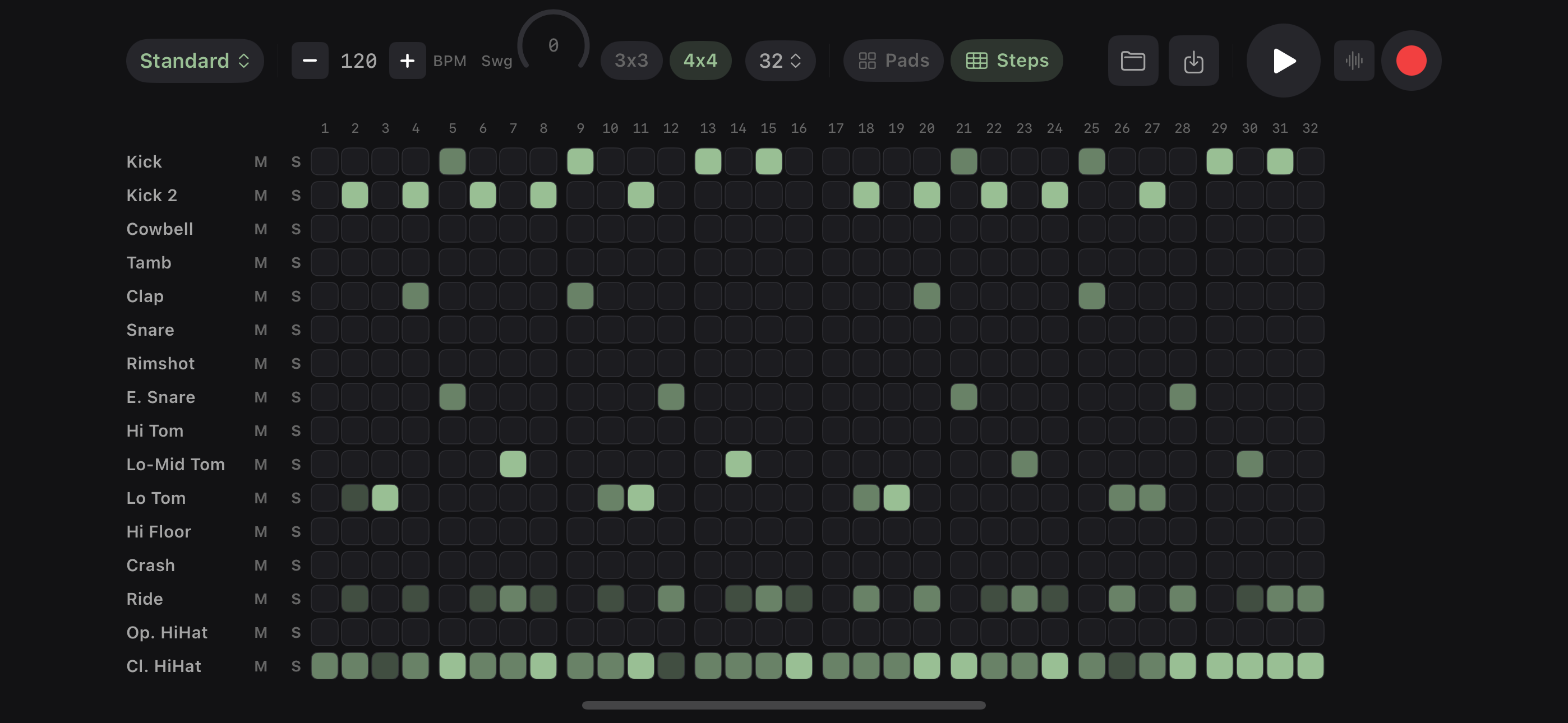
Program beats step by step on a grid. Each row is a drum sound, each column is a step in the pattern.
- Up to 32 steps per pattern (8, 16, 24, or 32)
- Tap to toggle steps on and off
- Velocity cycling — tap an active step to cycle through hard, medium, soft, and off
- Playhead — visual indicator shows the current step during playback
- Steps grouped in fours for easy reading
Mute & Solo
Each track (row) in the sequencer has mute and solo controls. Mute a track to silence it during playback. Solo a track to hear only that sound — useful for isolating a kick pattern or checking hi-hat timing.
Drum Kits
Switch between GM drum kits to change the entire sound palette:
- Standard — the classic kit
- Room — roomy, natural sound
- Electronic — punchy electronic drums
- Jazz — brushes and lighter sounds
- And more
Switch kits at any time, even during playback.
Swing
Add shuffle feel to your patterns. Swing shifts the timing of off-beat steps to create a groove that feels less rigid. Adjustable from straight (0%) to heavy swing.
BPM
Set the tempo with +/- buttons or type a value directly. The sequencer tempo is independent, so you can dial in the exact BPM for your pattern.
Recording from Beats
Tap record to capture your pad performance or sequencer playback as audio. The recording is saved to your library as an idea with content type set to rhythm and the BPM from your pattern. A tag sheet appears after recording so you can quick-tag it before saving.
Landscape Mode
Rotate your device for a full-screen view. The step sequencer especially benefits from the extra horizontal space — you can see more steps at once and the grid is easier to edit. The pad grid also expands in landscape for larger, easier-to-hit pads.
Saving & Loading Patterns
Save your current pattern (steps, kit, BPM, swing, pad assignments) for later. Load saved patterns from the pattern browser to pick up where you left off or use them as starting points for new beats.