A guitar part, a bass line, a lead vocal, a harmony. Four tracks give a small idea enough room to become a demo, while keeping the phone screen simple.
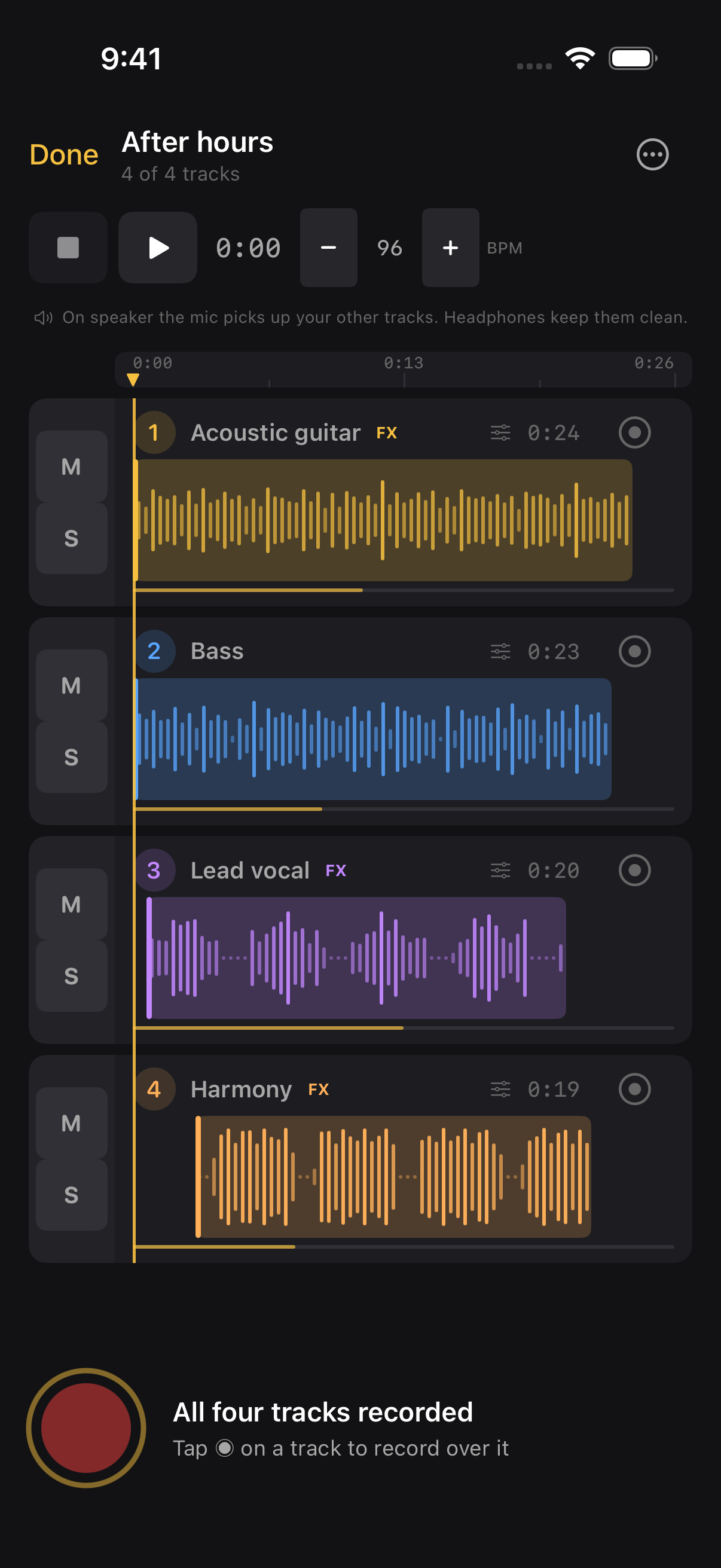
Start a multitrack
There are two ways in:
- From the recorder: switch the Record screen from Single to Multi before you record. When you stop, that take becomes Track 1 and the multitrack editor opens, ready for the next part.
- From an idea you already have: open a recording and tap Start a Multitrack. That recording becomes Track 1.
The editor keeps each part separately, so you can change the balance and trim any of them later.
Add the next part
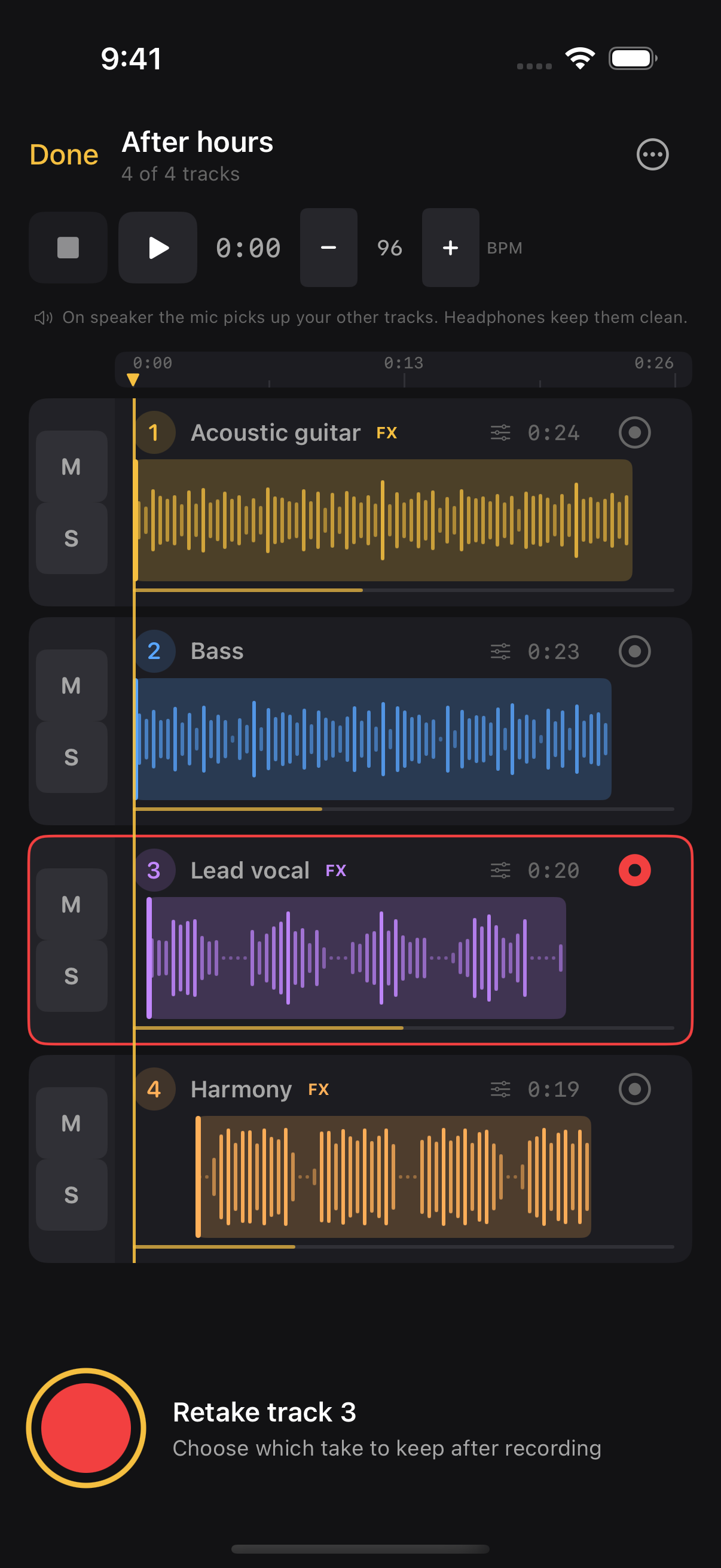
Tap the record button, or Record next track, to add a part while the existing tracks play. Stop when you have the take. You can keep going until there are four tracks.
The count-in clicks at the tempo in the BPM control; tap − or + to change it. Choose no count-in, 1 bar or 2 bars from the ••• menu. Use headphones when layering parts: on speaker, the microphone will pick up the tracks playing back.
Tap the timeline to choose where playback or the next recording begins. Turn the phone sideways for a wider view.
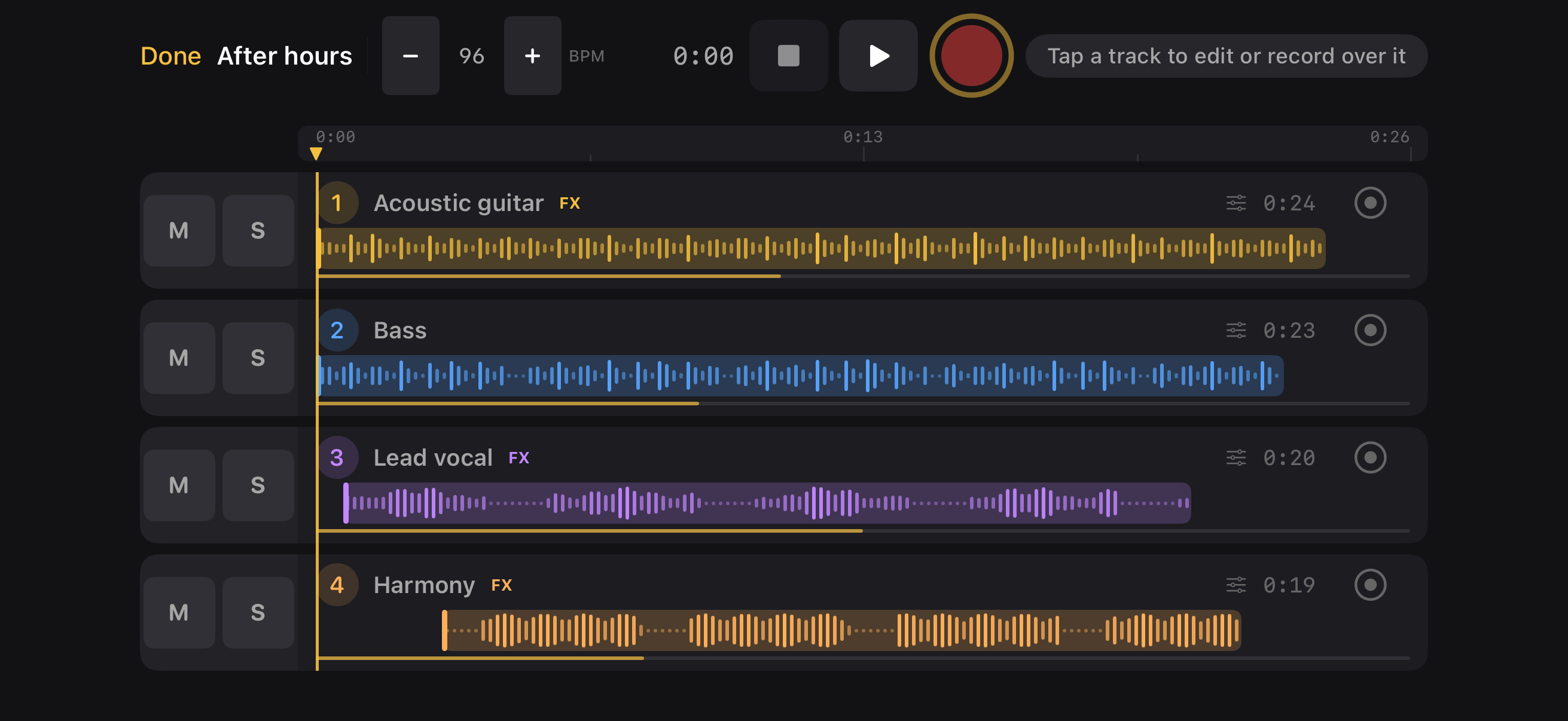
M mutes a track; S solos it. If any tracks are soloed, only those tracks are heard. A soloed track is heard even if its mute switch is also on.
Changed your mind about a take? For six seconds afterwards, Undo last take in the ••• menu removes it. If a new part keeps landing early or late against the others, run Calibrate latency from the same menu, then record again.
Balance the mix and add effects
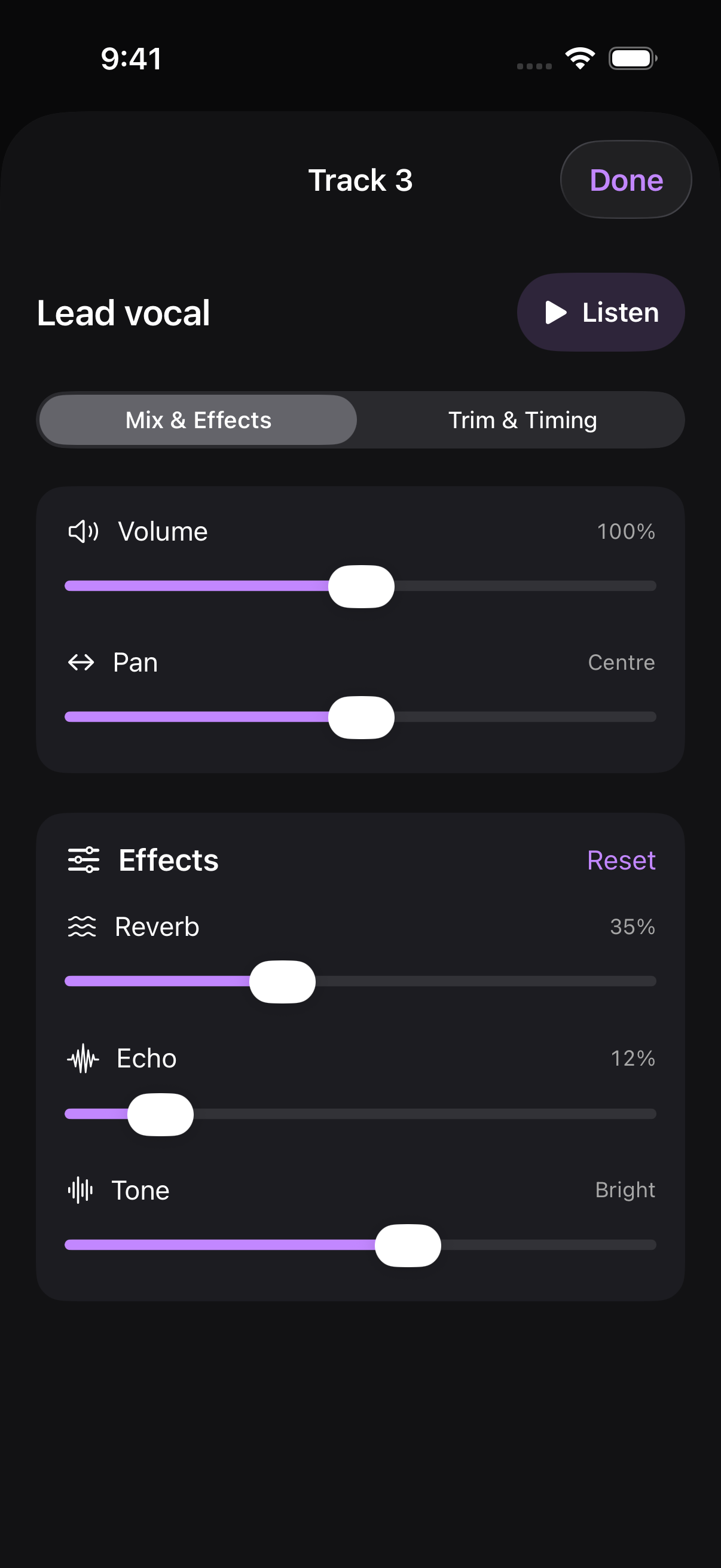
Tap a track’s name or waveform to open its settings. Mix & Effects has five controls:
- Volume: set how much of this part you hear.
- Pan: place it left, right or in the centre.
- Reverb: give it a little room.
- Echo: add a repeating delay.
- Tone: move from warmer to brighter.
Tap Listen to hear the mix while you adjust it. Effects are included when you save or export. To see every track’s volume and pan side by side, choose Levels & Pan… from the ••• menu.
Trim without losing the take
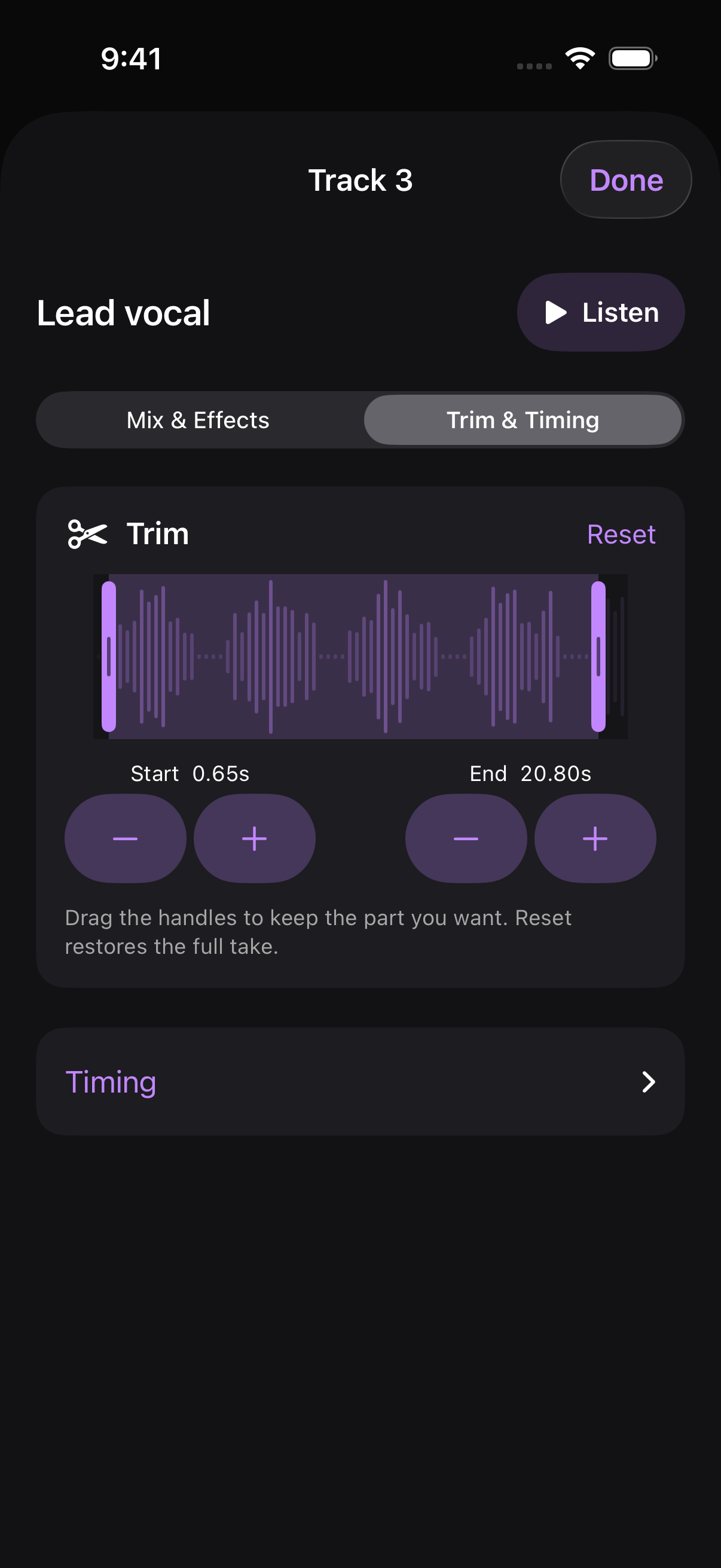
In Trim & Timing, drag the two handles to choose the section to keep. The minus and plus buttons adjust each edge by 0.01 seconds. Reset restores the full take.
Trimming leaves the remaining audio in the same place on the timeline, so the other parts stay aligned. Under Timing, nudge a track up to 50 ms earlier or later if it needs a small correction.
A multitrack idea doesn’t have the Trim mode described in Playback & Editing. Its audio is rebuilt from the tracks whenever the mix changes, so trim the tracks here instead.
Try another take
Tap the round record-target button on a track, or long-press the track and choose Record over this track, to arm it for a retake. After recording, choose whether to replace the old take or keep both. With four tracks already in the session, keeping the new take saves it as a separate idea.
Long-press a track for its other options: move it up or down, save it as its own idea, share just that track’s audio, or delete it.
Save the demo or take it to your DAW
Tap Done to save. The editor waits for the complete mix before closing. The idea in your library plays the combined mix; tap Open Multitrack on the idea to keep working with the individual parts.
On the idea, Export Mix shares the mix as one file and Export Stems shares a separate file for each track. Stem exports retain each part’s timeline position, including leading silence where needed, so you can line them up at the same start point in a DAW. Save Mix as New Idea… in the editor’s ••• menu makes a separate, flattened copy, and the multitrack keeps its tracks.
The editable session and original track files stay on this device. The finished mix follows your iCloud audio setting. See iCloud Sync and the privacy policy for the distinction.