Overview
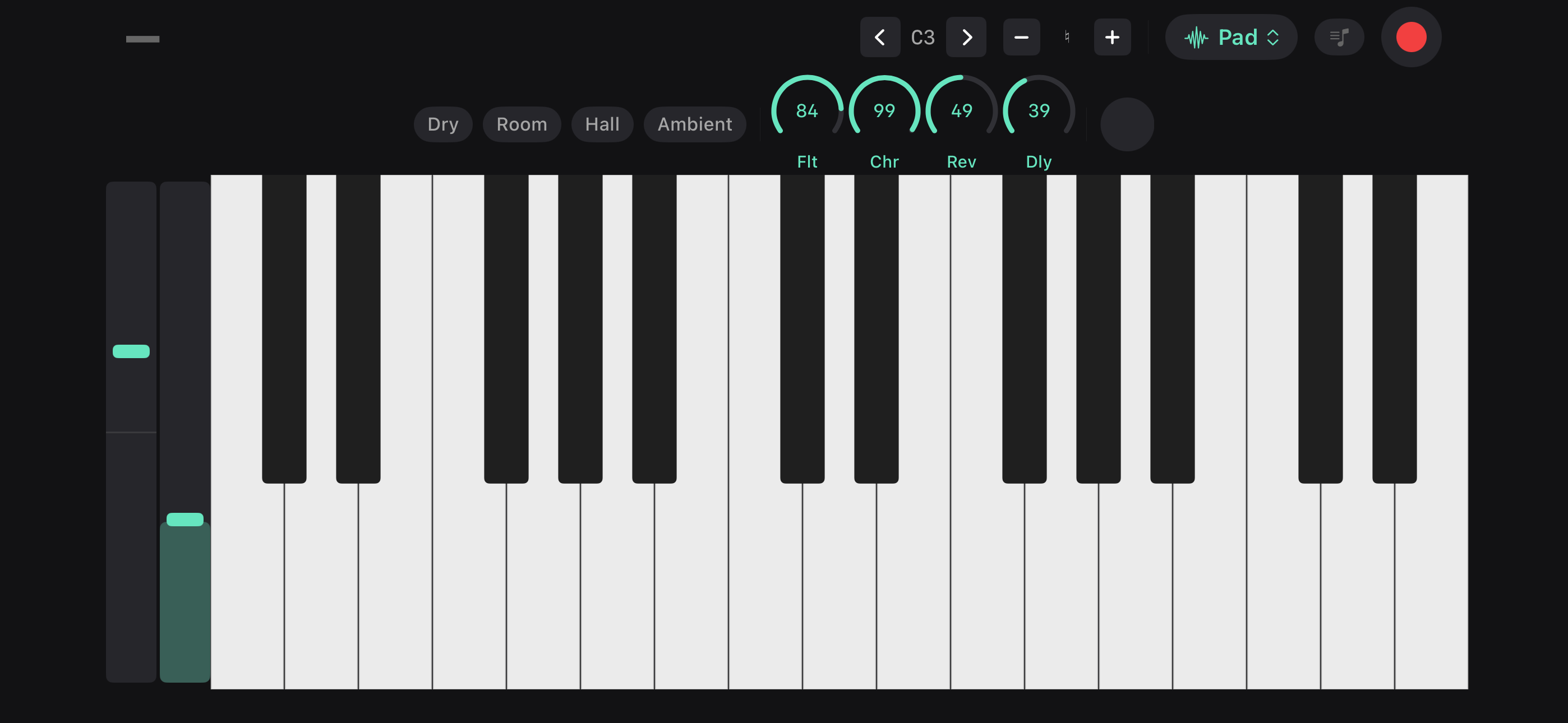
Good Take includes a full playable keyboard — all 88 keys of a piano, A0 to C8, 45 built-in instruments, and audio effects — right inside the app. Use it to sketch out ideas, try chord voicings, hear how a melody sounds on different instruments, or record a keyboard performance directly into your library.
Instruments
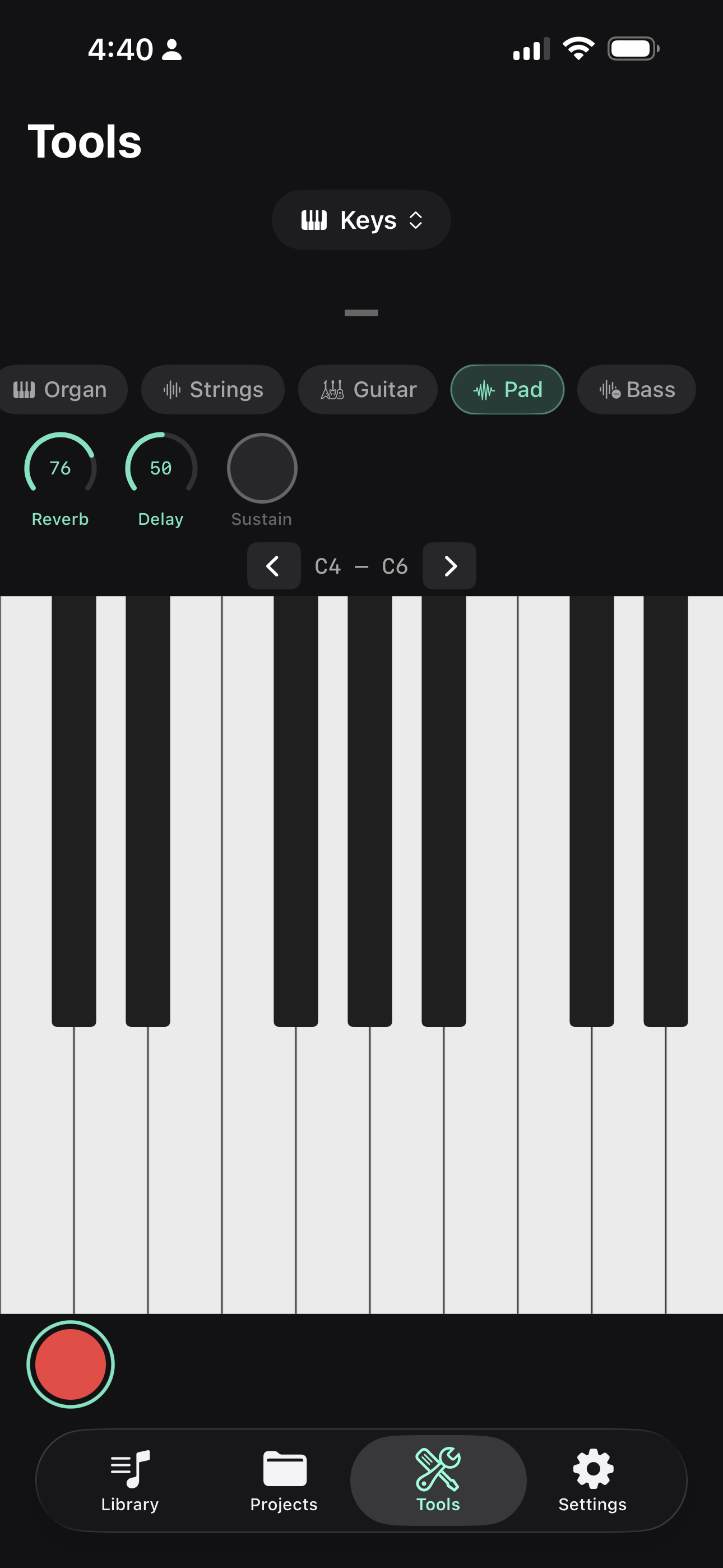
The keyboard comes with 45 built-in instruments from the bundled GeneralUser GS SoundFont. The favorites row starts with common sounds, and Browse opens the full library.
- Keys — acoustic piano, bright piano, electric piano, Wurli, clav, harpsichord
- Organ and mallets — drawbar organ, rock organ, church organ, vibraphone, marimba, celesta
- Guitar and bass — nylon, steel, jazz, clean electric, overdrive, upright, finger, pick, synth bass
- Strings and voice — strings, pizzicato, violin, cello, harp, choir, voice oohs
- Brass and winds — trumpet, trombone, French horn, brass section, synth brass, sax, flute, clarinet
- Synth and world — leads, pads, sitar, kalimba, steel drums
Switch instruments at any time — even mid-performance. Favorites and recents make it quick to get back to the sounds you use most.
Effects
Shape your sound with real-time knobs:
- Reverb — from dry to washed out
- Delay — rhythmic repeats
- Filter — darken the sound (landscape mode)
In landscape, one of the built-in presets — Dry, Room, Hall, or Ambient — quickly dials in a vibe.
Performance Controls
- Sustain pedal — hold notes without keeping your fingers on the keys
- Pitch bend — continuous pitch bend strip (available in landscape mode)
- Mod wheel — MIDI modulation control (available in landscape mode)
Scale Lock
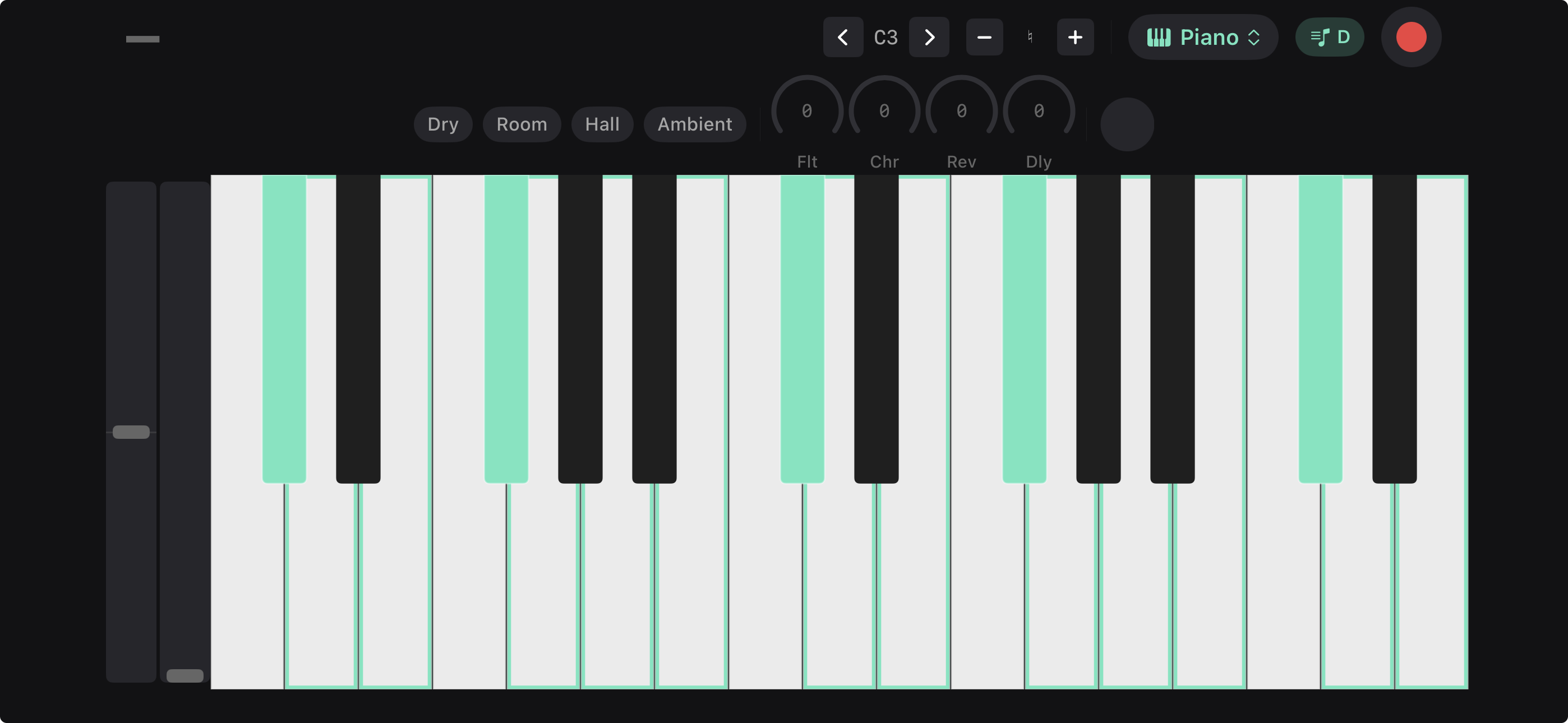
Pick a root note and a scale and every key that belongs to it lights up across the keyboard — twelve roots and eighteen scales, from the modes to harmonic and melodic minor, the pentatonics and the blues. Tap Scale next to Sustain in portrait, or the scale capsule in the landscape top bar.
On its own, scale lock guides rather than restricts: notes outside the scale still sound if you play them, so you can leave the key whenever the song wants you to. Scale lock remembers your key and scale when you rotate or come back later.
In-Key Notes Only
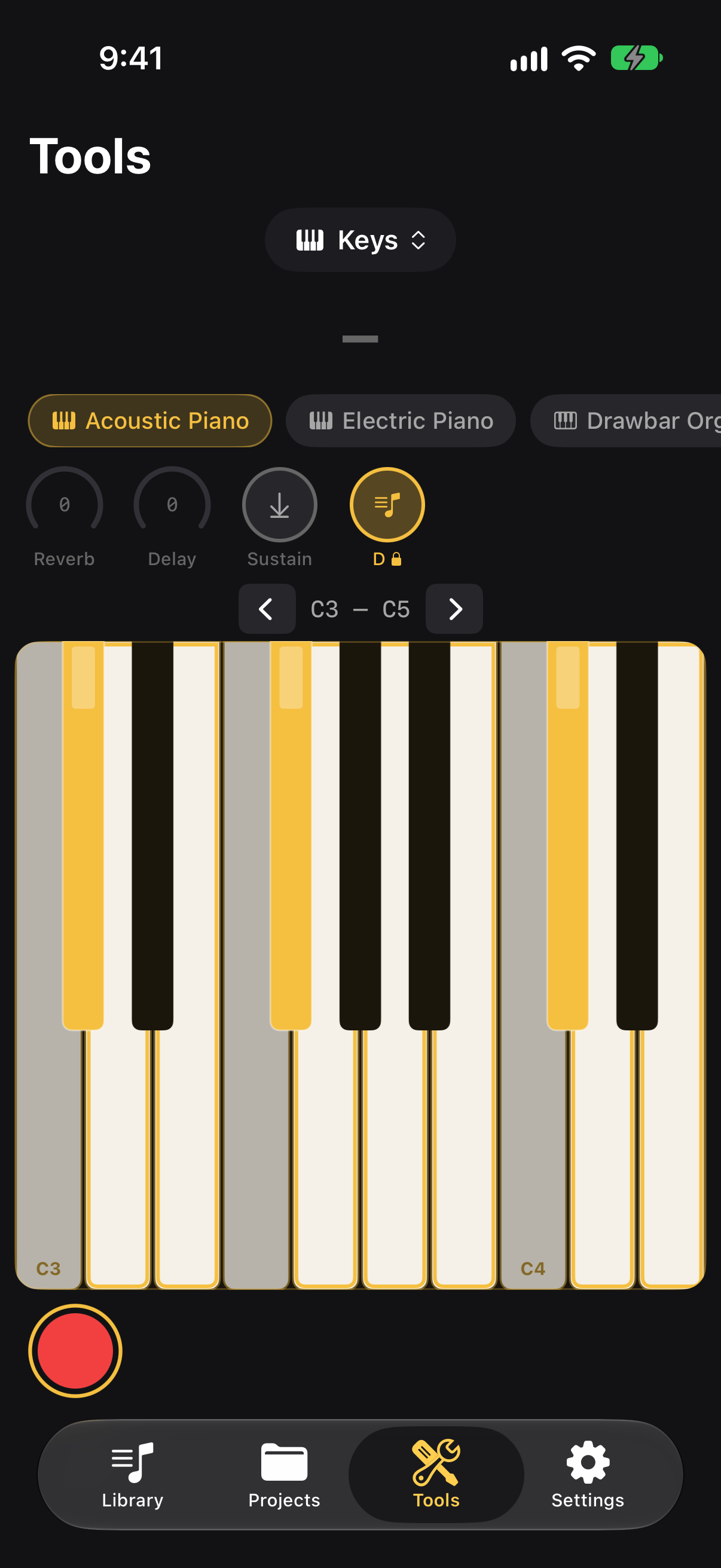
Want every note to fit? Turn on In-Key Notes Only in the same menu. Keys outside the scale turn grey and stay silent, so you can play freely without a wrong note — sliding a finger across the keys plays just the scale. It applies to a connected MIDI keyboard too, and the Scale button shows a lock while it’s on.
Transpose
Shift the entire keyboard up or down by up to 12 semitones. Useful for quickly changing keys without rethinking fingerings.
Chord Recognition
As you play, Good Take identifies what chord you’re playing in real time. Helpful for figuring out what you’re hearing or naming a voicing you stumbled into.
Recording from the Keyboard
Tap record while the keyboard is open to capture your performance. The recording lands in your library as a new idea — open it and tap Analyze recording to detect key and BPM.
Landscape Mode
Rotate your device to get a full-screen keyboard with more visible keys and dedicated controls for pitch bend, mod wheel, and effects. This is the best way to play on iPad.